 Leviate
Download Leviate
Move 3D scans, your 3D program and the mouse with your hand, using any webcam or your phone. Free and open source, nothing is recorded.
Version 1.3.37, 10 October 2026 · Release notes · All versions
IN THE BROWSER
Web App
Nothing to install. Open Leviate, drop your STL, PLY, OBJ, GLB, 3MF or FBX files and move them with your hand: open hand rotates, fist pans, pinch zooms. Works with the webcam of the computer, or with your phone as the camera through a QR code. Your files and the video never leave the device.
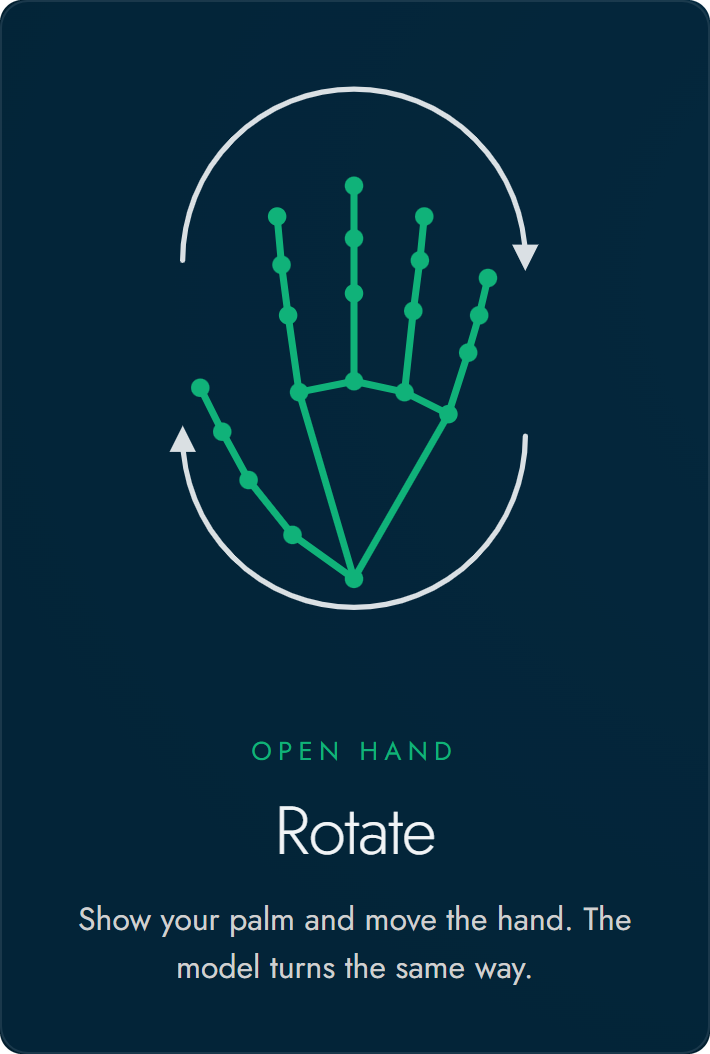
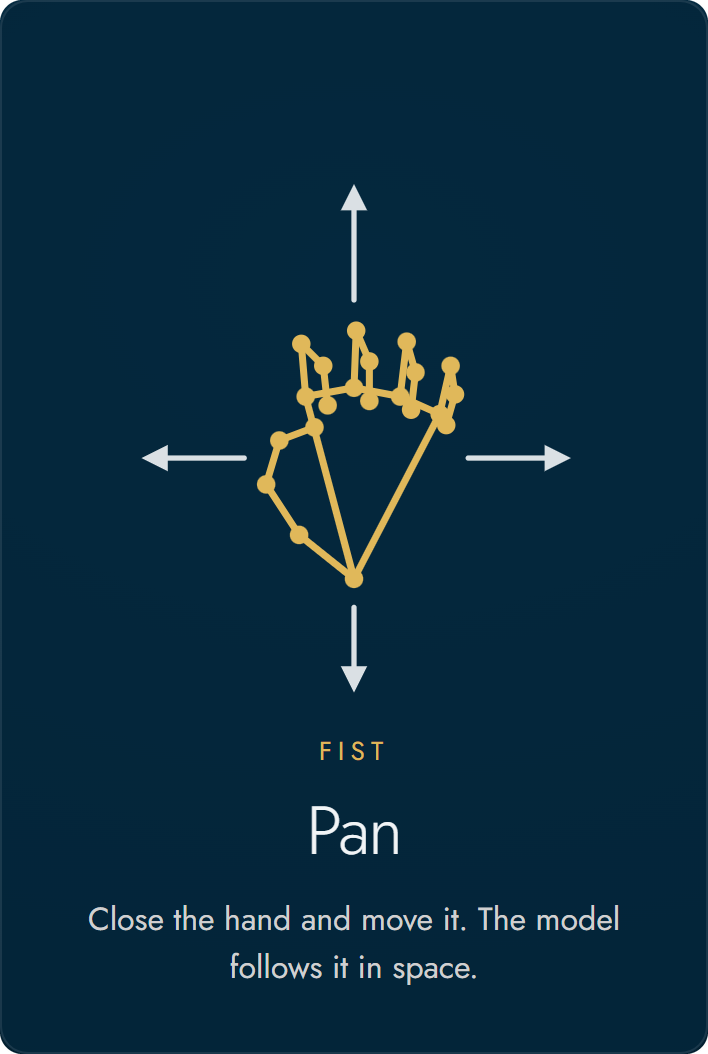
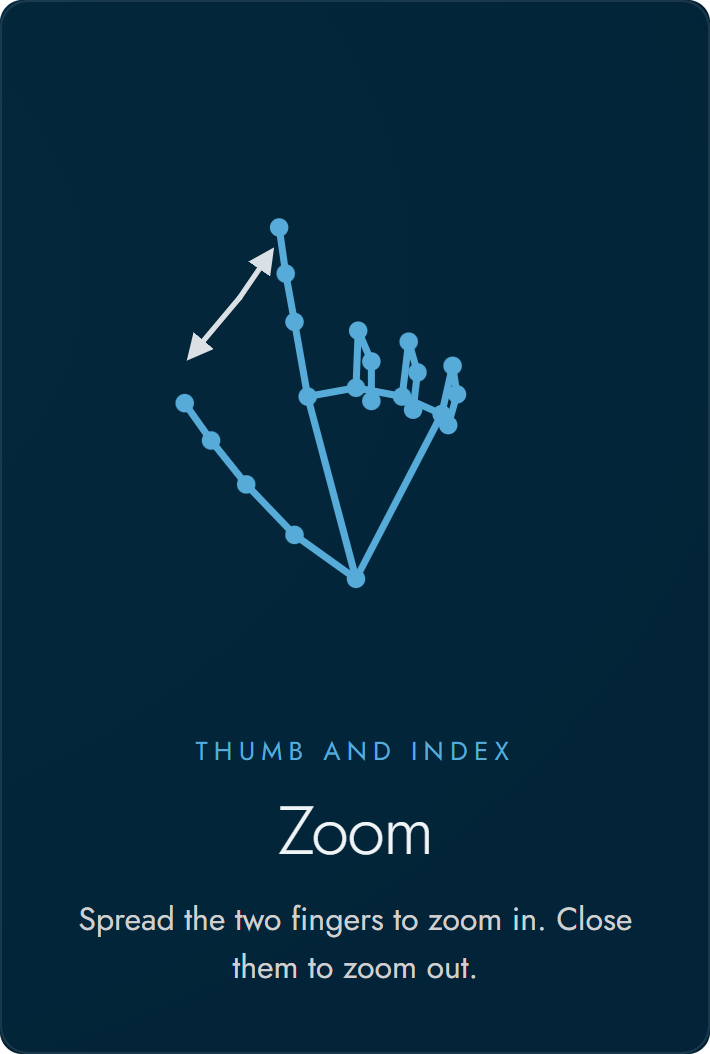
WINDOWS · MACOS · LINUX
Leviate for Desktop
Your hand on any program of the computer, with the webcam or the phone. Choose a module:
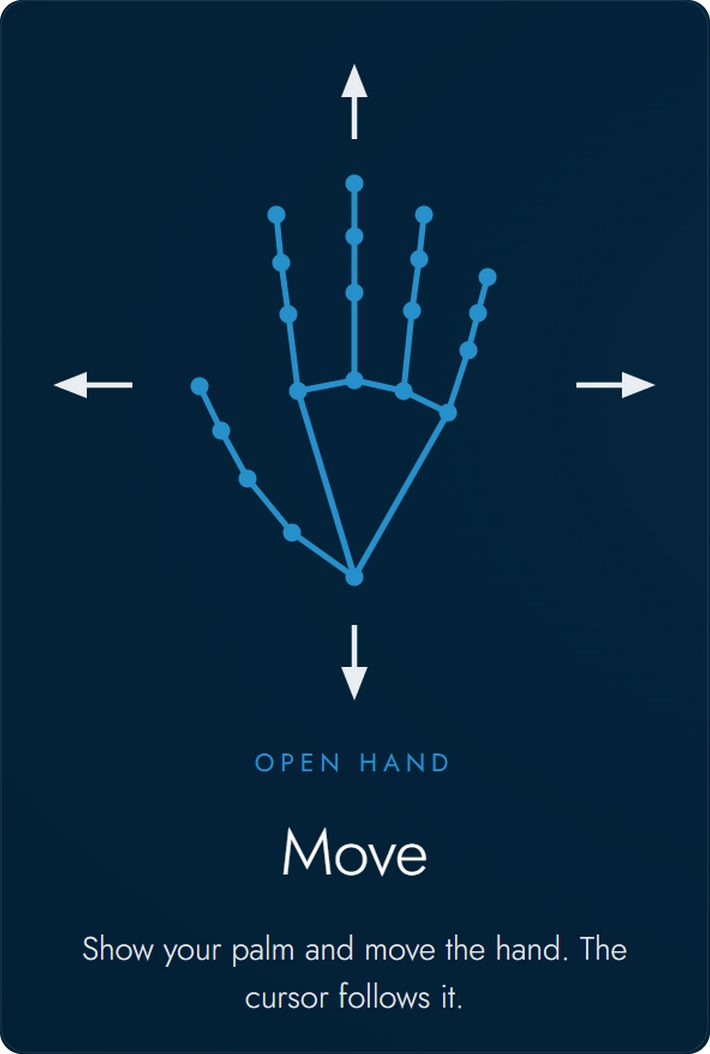
- 3D: the gestures of the web app in your 3D program. Open hand turns, fist pans, pinch zooms the view under the cursor. Choose how the program uses the mouse, or set the buttons yourself.
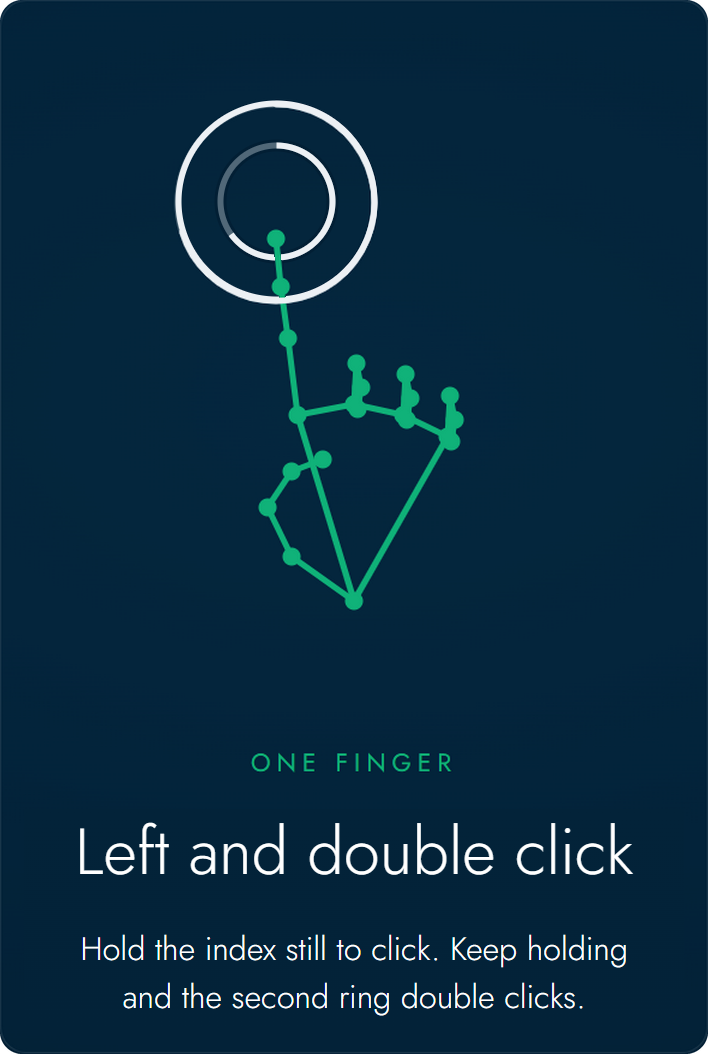
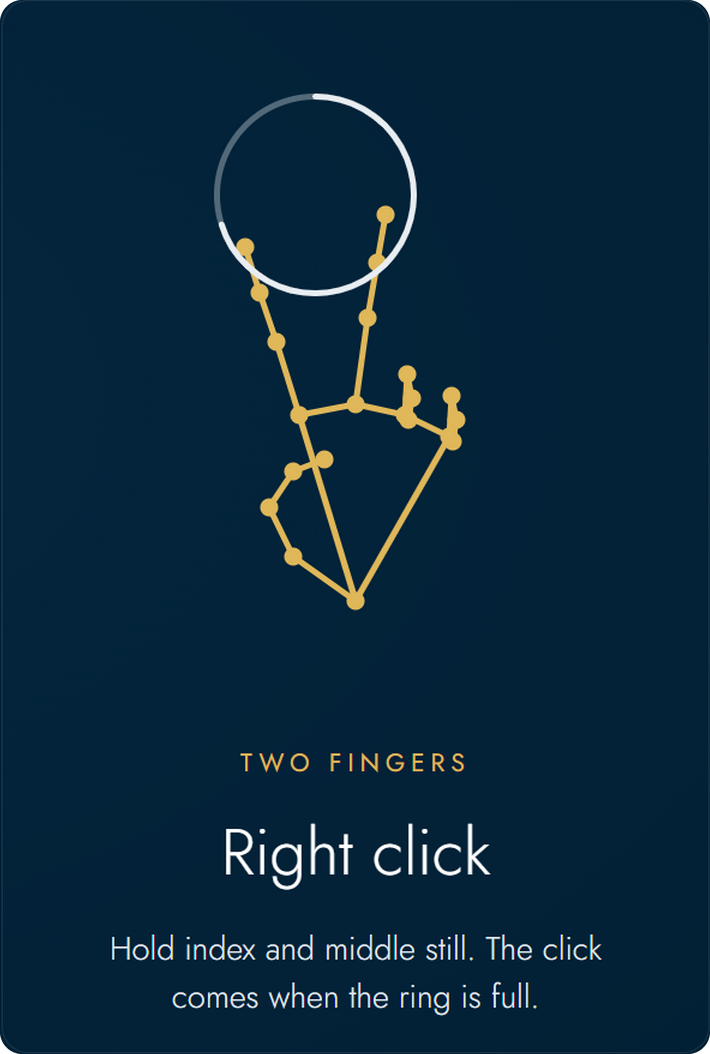
- Mouse: the open hand moves the cursor, one finger held still is a left click (keep it still for a double click), two fingers a right click.
Ctrl+Alt+M turns the hand off and on from any program.
The Windows installer is not signed yet: Windows may say "Windows protected your PC", choose More info and Run anyway. On macOS the app is signed and notarized by Apple: open it and allow Leviate in Accessibility. Linux needs an X11 (Xorg) session; the Flatpak opens with a double click or with flatpak install --user and the name of the file. On Ubuntu Leviate is also on the Snap Store: sudo snap install leviate. Full guide · Code signing policy
ADD-ON
Leviate for Blender
The same hand control inside Blender 4.2 or later, Blender 5 included. The camera and the hand tracking run in Blender itself: open hand rotates, fist pans, pinch zooms the 3D view or the selected objects. With Phone a QR code appears in the 3D view, no app needed.
- Download the zip for your system. Do not unzip it.
- Drag it into the Blender window, or open Edit, Preferences, Get Extensions and install from disk.
- In the 3D view press N, open the Leviate tab and press Start camera.
Also on the official Blender Extensions platform: in Blender open Get Extensions and search Leviate. Full guide
EXTENSION
Leviate for Chrome
The two modules of Leviate for Desktop inside the pages of Chrome, Edge and the other browsers built on Chrome, from a side panel with the webcam or your phone. It loads no files: it is a controller for the page you are on.
- 3D: open hand turns, fist pans, pinch zooms the 3D viewer under the mouse.
- Mouse: the open hand moves a cursor in the page, one finger held still is a left click, two fingers a right click.
Alt+Shift+M turns the hand off and on from any page.
- Open Leviate on the Chrome Web Store and press Add to Chrome.
- Click the Leviate icon in the toolbar: the side panel opens. Press Start and choose 3D or Mouse.
The zip is the same extension, to load by hand: unzip it, open chrome://extensions, turn on Developer mode and press Load unpacked.
Soon on the Chrome Web Store too. While the hand is on, Chrome shows a bar saying that Leviate is debugging the tab: that is how an extension presses real mouse buttons in a page. Full guide
PLUGIN
Leviate for Dentra Viewer
A plugin for the Viewer of Dentra: open hand turns, fist pans, pinch zooms the models, with the webcam or your phone. Nothing to download: it runs inside the Viewer.
- In Dentra Viewer open the Plugin panel and turn on Leviate.
- Press Start and allow the camera, or Use phone and scan the QR code.
- Raise your hand in front of the camera.
In review at Dentra: once it is published it shows up in the Plugin panel of the Viewer. Full guide
HELP
Questions
Do I need to install anything?
No. The Web App runs in Chrome, Edge, Firefox or Safari, on a computer or a phone. Install Leviate for Desktop to move your own 3D program or the mouse with your hand, the extension for Chrome to do it in the pages of the browser, the add-on to use it inside Blender 4.2 or later and the plugin inside Dentra Viewer. Everywhere your phone can be the camera: choose Use phone and scan the QR code, no app needed.
The camera does not start. What can I do?
Allow the camera when the browser or the system asks for it. Close other programs that use the camera, such as video calls or another Leviate window, then press Start again. With several cameras, choose another one in the Camera section.
Does it work with medical gloves?
Yes. Nitrile and latex gloves work in any color, blue, purple and black included, with nothing to turn on. While no hand is found, Leviate also looks through filters that paint the gloves in a skin tone and keeps the one that finds the hand. Good light and an open hand facing the camera help the first time.
Windows, macOS or Linux stops the app.
The Windows installer of Leviate for Desktop is not signed yet. On Windows choose More info and then Run anyway; Smart App Control, on some Windows 11 computers, can block it without that choice, so there use the Web App for now. On macOS the app is signed and notarized by Apple: allow Leviate in Accessibility when macOS asks. On Linux choose the Xorg (X11) session: Wayland does not let programs move the mouse.
Which Program mouse should I choose for my 3D program?
Choose your program under Program: dental CAD is the default, then Blender, SketchUp, SOLIDWORKS, Fusion, Rhino and more. For a program not in the list choose one that turns and pans with the same buttons (the guide on GitHub has a table), or Custom for any button with Shift, Ctrl or Alt. Put the cursor on the 3D view first.
How do I stop the hand?
Press Ctrl+Alt+M, or Ctrl+Option+M on macOS, from any program: the hand turns off, and the same keys bring it back. You can also choose Off in Leviate, or simply lower the hand.
Is the video recorded or sent anywhere?
No. The hand is tracked on your device and the video is never recorded or uploaded. With a phone as the camera, the free PeerJS server only introduces the two devices and sees their IP addresses; the video goes straight between them, encrypted.
Something else? Write on GitHub or read the privacy policy.